Mastering the 3D Cartoon Style Photoshop Text Effect: A Beginner's Guide to Eye-Catching Typography
Typography is more than just arranging letters on a page. It's an art form that conveys mood, personality, and meaning. Among the most delightful and visually engaging typography styles is the 3D cartoon style Photoshop text effect. This technique transforms flat text into playful, dimensional lettering that pops off the screen, making it ideal for posters, social media graphics, video thumbnails, and branding. Whether you're a graphic design newbie or a seasoned creative looking to expand your toolkit, understanding how to create and apply this effect can elevate your work significantly.
What Exactly Is a 3D Cartoon Style Text Effect?
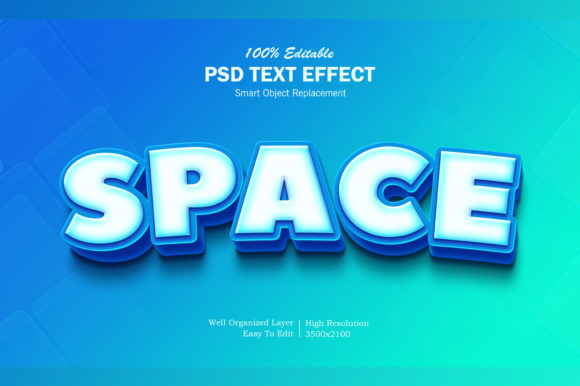
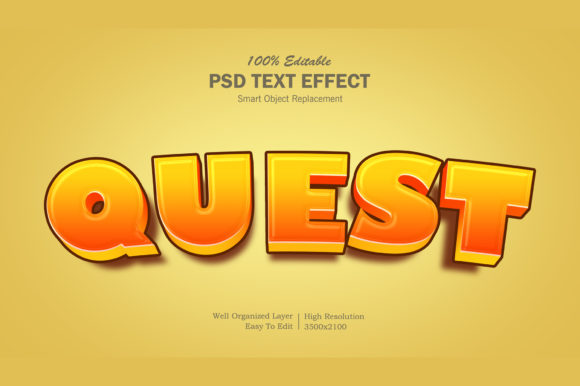
At its core, a 3D cartoon style text effect combines the illusion of depth (three-dimensionality) with the exaggerated, whimsical aesthetic of cartoon art. Unlike realistic 3D rendering, which aims for photorealism, the cartoon approach embraces bold outlines, bright colors, simplified shadows, and playful highlights. The result is text that feels bouncy, friendly, and larger-than-life.
In Photoshop, this effect is achieved by layering techniques such as bevel and emboss, extrusion, drop shadows, and custom brush work. The key is balancing depth without sacrificing readability or the characteristic cartoon charm.
Why This Style Matters in Modern Design
In today's crowded digital landscape, grabbing attention is paramount. The 3D cartoon Photoshop text effect does exactly that. It's inherently eye-catching because of its dimensionality and vibrant appearance. Brands targeting younger demographics or wanting to convey a fun, approachable personality often use this style. Think of children's product packaging, game interfaces, YouTube channel art, and event banners.
Moreover, this effect bridges nostalgia and modernity. It recalls the Saturday morning cartoons of the past but leverages contemporary design tools to look crisp and polished. This duality makes it versatile across various mediums, from digital ads to print merchandise.
The Core Elements of a 3D Cartoon Text Effect
To build a successful 3D cartoon style text effect in Photoshop, you need to understand its fundamental components. Each element plays a crucial role in creating the final look.
1. Bold, Rounded Typography
The foundation is the font itself. Cartoon-style effects work best with bold, rounded typefaces. Fonts like Comic Sans, Bubblegum Sans, or custom rounded sans-serifs provide the friendly base needed. Thin or overly intricate fonts tend to get lost when extruded into 3D.
2. Extrusion and Depth
Depth is what makes the text appear 3D. In Photoshop, this is often done by duplicating the text layer multiple times, shifting each copy slightly, and merging them. Alternatively, Photoshop's 3D workspace can extrude text directly, though many designers prefer manual layering for more control over the cartoon aesthetic.
3. Outlines and Stroke
A defining trait of cartoon art is the bold outline. Applying a thick stroke around the text and its extruded layers gives that classic comic-book feel. This outline acts as a unifying element, making the 3D effect read clearly even from a distance.
4. Vibrant Color Palettes
Cartoon styles thrive on bright, saturated colors. Think primary reds, sunny yellows, electric blues, and vivid greens. Gradients are also common, but they should remain bold rather than subtle. The color scheme should feel energetic and playful.
5. Highlights and Shadows
To sell the 3D illusion, you need highlights on the top edges and shadows where surfaces meet. These aren't realistic—they're stylized. Highlights are often pure white with a soft edge, while shadows are black or a darker version of the base color. This contrast amplifies the cartoon effect.
How to Create a Basic 3D Cartoon Text Effect in Photoshop: Step-by-Step
Let's walk through a straightforward method to create your own 3D cartoon style Photoshop text effect. This technique uses layer styles and manual duplication, which is beginner-friendly and highly customizable.
Step 1: Set Up Your Document and Text
Open Photoshop and create a new document (e.g., 1920x1080 pixels for a web banner). Select the Type Tool (T) and choose a bold, rounded font. Type your word or phrase. Set the font size large enough to fill a good portion of the canvas. Center the text using the Move Tool and alignment options.
Step 2: Add the Base Color and Stroke
With the text layer selected, go to Layer > Layer Style > Stroke. Choose a dark color (black or dark gray) and set the size to around 5–10 pixels, depending on your font size. Then add a Color Overlay in the same Layer Style panel. Pick a bright, vibrant color for the front face of the text.
Step 3: Create the Extrusion
This is where the 3D magic happens. Duplicate your text layer (Ctrl+J / Cmd+J). Select the original text layer below the copy. Using your keyboard arrow keys, nudge this layer down and to the right by one pixel. Repeat this process—duplicate, nudge—until you have a stack of layers that creates the desired depth. For a strong cartoon look, 10–20 duplicates work well.
Once you have your stack, select all the extruded layers (excluding the top text layer) and merge them (Ctrl+E / Cmd+E). This merged layer forms the 3D block. Apply a darker version of your base color to this block using a Color Overlay layer style.
Step 4: Add a Bold Outline to the Extrusion
With the merged extrusion layer selected, add a Stroke layer style, again using a dark color. This ensures the sides of the 3D text have the same cartoon outline as the front face.
Step 5: Apply Highlights for Depth
To make the text pop, add highlights to the top text layer. Use a Bevel and Emboss layer style. Choose "Inner Bevel" with a smooth technique. Adjust the depth, size, and soften settings to create a gentle, rounded highlight along the top edges of the letters. Keep the highlight color white and the shadow mode dark. This step gives the text a shiny, plastic-like quality common in cartoon graphics.
Step 6: Fine-Tune and Customize
Play with the settings. Change the base color, adjust the stroke width, or add a subtle drop shadow beneath the entire text to ground it. You can also apply a gradient overlay to the extrusion for a more dynamic look.
Common Misunderstandings About the 3D Cartoon Text Effect
Many beginners assume that creating a 3D cartoon style text effect in Photoshop requires advanced skills or expensive plugins. While plugins can speed up the process, the manual method above proves that anyone with basic Photoshop knowledge can achieve professional results. Another misconception is that the effect is only for childish themes. In reality, with careful color choices and subtle styling, it can work for modern tech branding, entertainment logos, and even editorial design when used sparingly.
Another common mistake is overcomplicating the shadows. In cartoon style, shadows should be simple and bold—not soft and realistic. Using a black or dark color with 100% opacity for the extrusion stroke often looks better than a gradient or blurred shadow. Keep it clean and graphic.
Practical Applications and Real-World Examples
The 3D cartoon Photoshop text effect is not just a party trick; it has genuine practical relevance. Consider these scenarios:
- Social Media Content: Bold, 3D text stands out in Instagram stories, YouTube thumbnails, and Twitter banners. It conveys energy and draws the eye amid endless scrolling.
- Event Posters: For children's events, school functions, or carnival-themed parties, this text style immediately signals fun and excitement.
- Gaming Graphics: Indie game developers often use cartoon 3D text for title screens, logo animations, and promotional materials. It fits the playful nature of many games.
- Branding for Kids' Products: Toy companies, educational apps, and children's book covers benefit from the approachable, friendly feel of cartoon typography.
- Merchandise Design: T-shirts, mugs, and stickers featuring 3D cartoon text are popular in online stores. The effect translates well to physical products.
In each case, the text effect serves the purpose of being memorable and engaging. It doesn't just communicate a word; it communicates a feeling.
Optimizing Your Workflow: Tips for Efficiency and Creativity
Once you're comfortable with the basic process, here are ways to refine your 3D cartoon style text effect workflow:
- Use Layer Groups: Keep your project organized by grouping the extruded layers and the top text layer. This makes adjustments easier.
- Save Layer Styles: After creating a style you like, save it as a preset. You can then apply it to any text with one click.
- Experiment with Texture: Add a subtle noise or pattern overlay to the extrusion for a tactile, almost fabric-like feel.
- Combine with Vector Shapes: Add cartoon elements like stars, swooshes, or speech bubbles around the text to enhance the composition.
- Animate the Effect: If you're working in Photoshop's timeline or a program like After Effects, you can animate the extrusion or rotation of the text for dynamic video content.
Why This Knowledge Matters for Designers and Content Creators
Understanding the 3D cartoon style Photoshop text effect is more than just learning a technique. It's about expanding your visual vocabulary. When you know how to create this effect, you can make deliberate choices about when to use it. You also gain insight into fundamental design principles—layering, depth, contrast, and color theory—that apply to countless other projects.
For content creators, especially those on platforms like YouTube, TikTok, or Etsy, having this skill in your arsenal can differentiate your work from thousands of others. A well-designed piece of typography can be the difference between someone scrolling past or stopping to engage.
Resources to Continue Learning
Adobe's official Photoshop tutorials offer deep dives into layer styles and 3D tools. Community platforms like Behance and Dribbble showcase inspiring examples of cartoon 3D typography. Experimenting with free font libraries such as Google Fonts or DaFont can help you discover the perfect typeface for your next project.
Remember, the best way to master the 3D cartoon style Photoshop text effect is to practice. Start with a single word, try different color combinations, and gradually add more complexity. Each iteration will teach you something new about balance, contrast, and the playful art of cartoon design.
Conclusion
The 3D cartoon style Photoshop text effect is a powerful, versatile tool in any designer's repertoire. It combines technical layering techniques with the creative freedom of cartoon aesthetics. By understanding its key elements—bold fonts, extrusion, outlines, vibrant colors, and stylized highlights—you can create text that is not only readable but truly memorable.
Whether you're designing for a client, building a personal brand, or simply exploring creative hobbies, this effect offers a direct path to more engaging typography. Embrace the playfulness, experiment without fear, and let your text leap off the screen.